Stop compressing
like it's
1996Video and image compression with side-by-side preview, file size stats, and one-click upload to Webflow. Free and macOS native.
Get the appStop compressing
like it's
1996Video and image compression with side-by-side preview, file size stats, and one-click upload to Webflow. Free and macOS native.
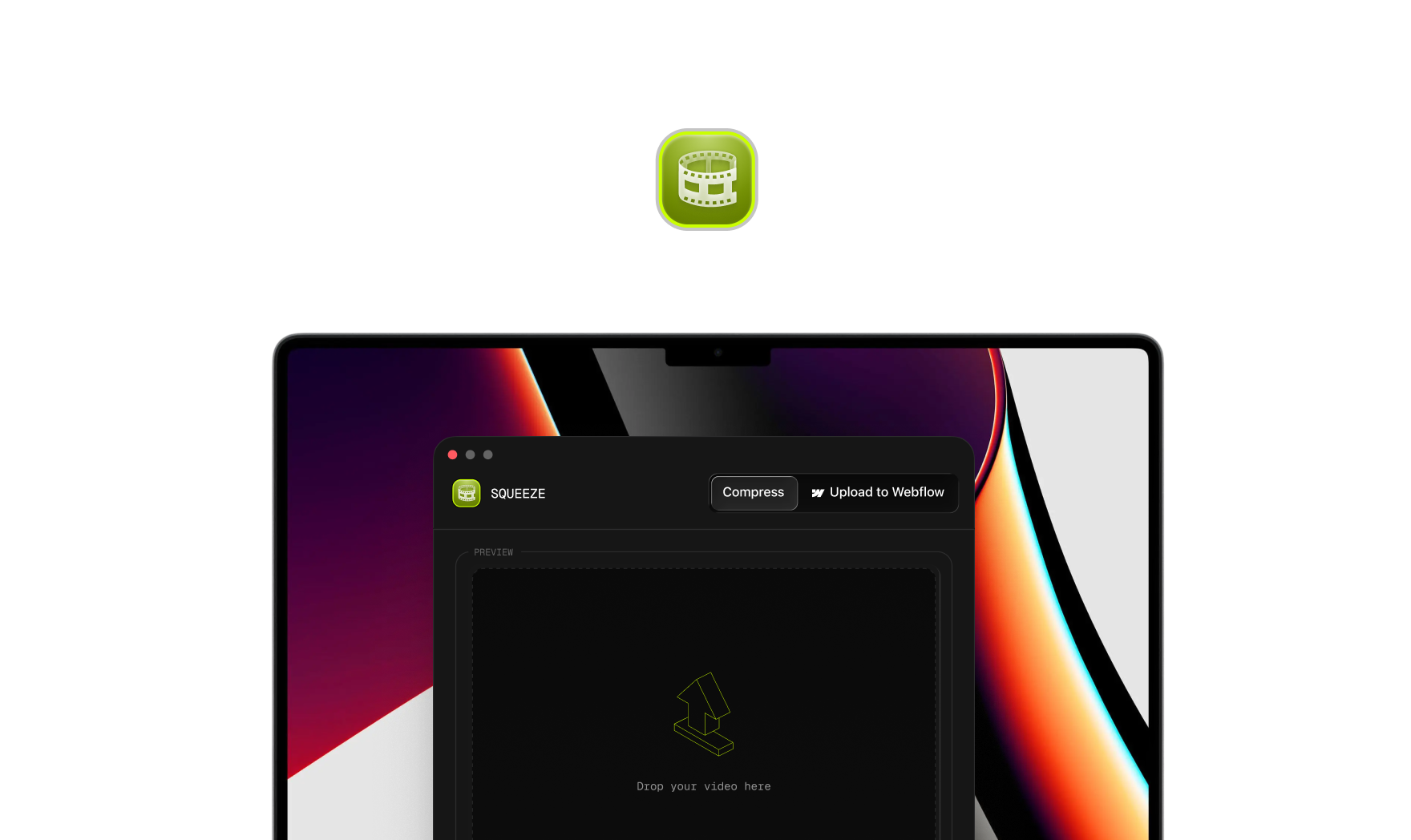
Get the appCodec, quality, frame rate, file size — adjust everything with a simple UI. No command line required.
PNG, JPEG, WebP, AVIF, MOV, WebM — drop any file and get it web-ready in seconds.

Compare original vs. compressed side-by-side. Save only when you're happy.
One click to your project's Assets panel. No extra tools, no extra costs.
We're GRAFIT – a digital agency that ships Webflow sites for tech companies.
We compress videos and images for client projects every single day.
We know exactly how painful the current tools are because we've been using them for years.
Squeeze is the tool we built for ourselves and decided to share. It's free and native macOS.
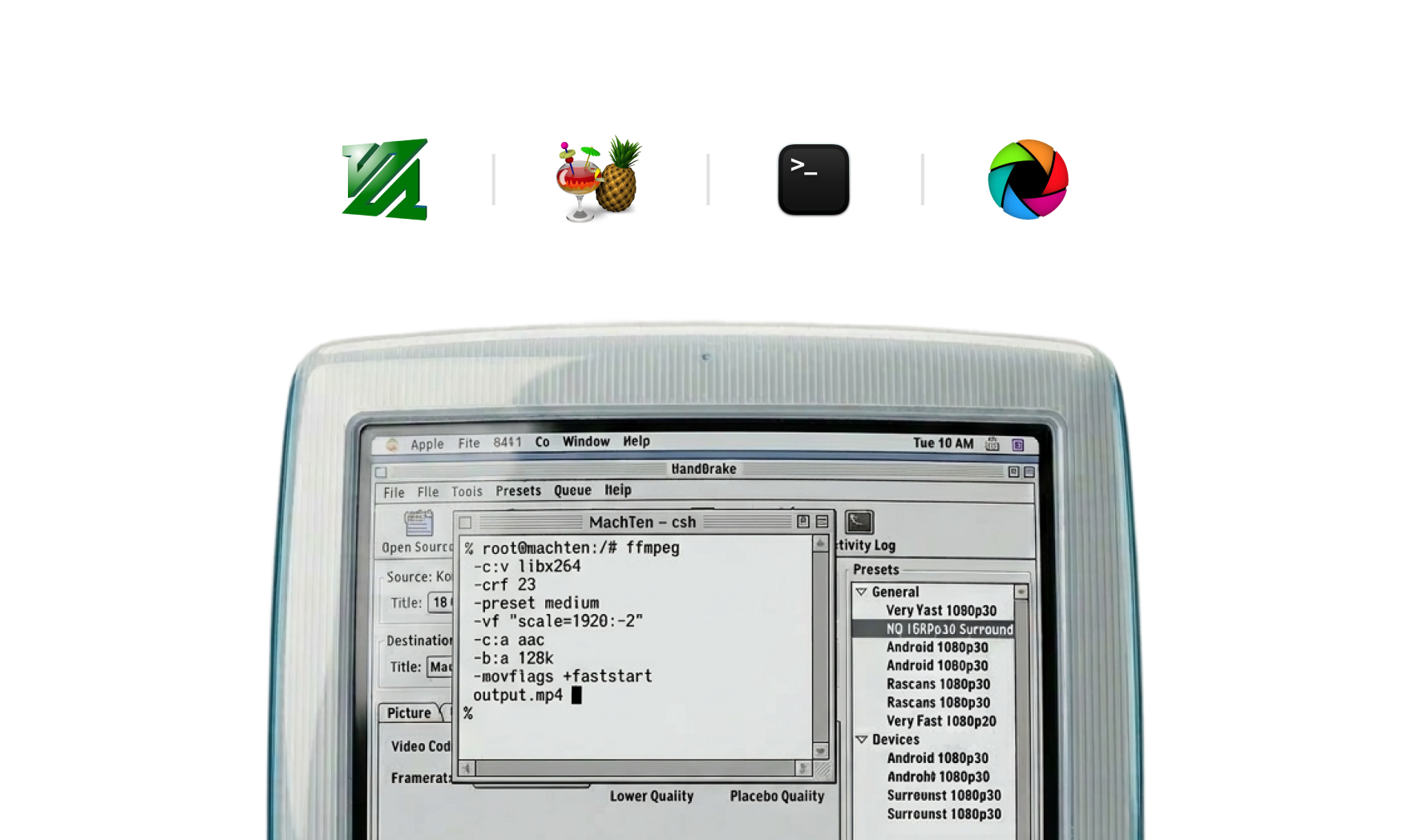
Handbrake is great for video — but it's video only, and there's no side-by-side preview. You guess settings, export, check, repeat. Squeeze handles video and images in one app, with a preview before you save.
Squoosh and ImageOptim are images-only. If your project includes video — which most Webflow sites do — you'd still need a separate tool. Squeeze covers both in one place, and connects directly to Webflow so you never leave the app.
Connect once with your Webflow API key. After that, every compressed file uploads straight to your project's Assets panel with a single click — no browser tab switching, no copy-paste, no dashboard.
Yes, completely free. No trial period, no feature limits, no account required. We built it for our own workflow at GRAFIT and decided to share it.
Native apps use system codecs and hardware acceleration, which makes encoding significantly faster than Electron or browser-based tools. Tighter OS integration means drag-and-drop, Finder support, and no background processes eating your RAM.
Video: MP4 (H.264, H.265), WebM (VP9), MOV. Images: JPEG, PNG, WebP, AVIF. More formats are added with each release — check the changelog for the latest.
macOS first while we refine the core experience. Windows is next on the roadmap. Leave your email on the site and we'll let you know when it launches.